
Summary: If a WordPress update leaves your business website broken, pause further changes and record the exact error before trying a fix. This guide explains how to separate a display problem from a wider outage, compare a targeted rollback with a full backup restore, and protect orders or enquiries received since the backup. Use the symptom table, recovery checklist and support handoff to choose the next step, then test the pages, forms and checkout your customers actually use before calling the repair complete.
You installed an update. Now the homepage is blank, the menu will not open or customers cannot check out. Before trying another plugin or restoring an old backup, protect the information your business could lose in the process.
What to do first
Pause further changes, record the exact symptom and confirm what a recovery would replace. Start with the smallest repair supported by the evidence. A working homepage is only the first check; your forms, bookings or checkout need their own test.
If your business needs help now, see our WordPress website repair service. Send the affected URL, error and update time so the investigation has a useful starting point.
1. Record the problem before changing more
Write down when the site last worked, when you first saw the problem and the timezone. Note whether the change involved WordPress, a theme, a plugin or the hosting PHP version. If several updates ran together, keep the whole list rather than guessing which one caused it.
- Where: the exact public page, not just the domain.
- What: the visible error, screenshot or action that fails.
- Who: logged-out visitors, logged-in staff, phone users or everyone you checked.
- When: last successful use, first failure and update time.
- What changed: old and new versions where available, plus any hosting change.
Try the affected page in a private browser window and on a second connection, such as your phone's mobile data. This helps distinguish a local display issue from a wider failure. Record the result; repeated refreshing alone will not identify the cause.
If WP Admin is unavailable, ask the host or developer for the error log at the matching time. Keep logs and recovery links private. Do not paste credentials, customer records or complete logs into a public forum or an unfamiliar AI tool.
2. Match the symptom to the next check
The same update can expose different problems on different sites. Use this table to describe yours clearly, rather than treating every failure as a reason to reinstall WordPress.
| What you see | What to check next | Avoid rushing into |
|---|---|---|
| Blank page, critical error or server error | Host status, error timestamp and the component named in the log. | Deleting folders or changing several components without a recovery copy. |
| Page loads, but layout or menu is broken | Compare logged-out phone and desktop views; check affected CSS or JavaScript and relevant caches. | A full database restore for a display-only fault. |
| Maintenance message stays on screen | Ask whether the update is still running or was interrupted; confirm its final state with the host. | Removing maintenance controls while an update is actively running. |
| Form, booking or checkout fails | Repeat one controlled test of that feature and review its own logs or destination record. | Assuming a successful homepage load proves the business workflow works. |
A fresh error after an update is a lead for diagnosis, not proof of a hack. Unexpected admin users, redirects or altered files need a separate security investigation. Likewise, avoid switching off the firewall across the whole site just because a request failed; inspect the matching event first.
3. Rollback and full restore solve different problems
A targeted rollback returns a particular plugin or theme to an earlier version. A full restore can replace both website files and database records with an older copy. Neither should be treated as a harmless undo button.
Ask the developer what the update changed, including any database migration, and whether the earlier component version can work with that database. A temporary rollback also needs a route back to supported software; leaving a known vulnerable version in place is not a completed repair.
For a full recovery, the WordPress backup handbook explains why files and the database both matter. Confirm the backup's date, what it contains and whether it has been tested. A backup labelled successful is not the same as a demonstrated restore.
Example: a shop's backup is from 08:00, the update runs at noon and three orders arrive in between. Restoring the 08:00 database could remove those order records from the website. The payment provider may still show the charges. Someone must preserve and reconcile that newer activity before recovery, rather than discovering the mismatch afterwards.
The same question applies to enquiries, bookings, new customer accounts and content edits. A form submission might be stored elsewhere, or nowhere at all. Check the actual setup before assuming it can be recovered.
4. Agree on a recovery plan that protects recent activity
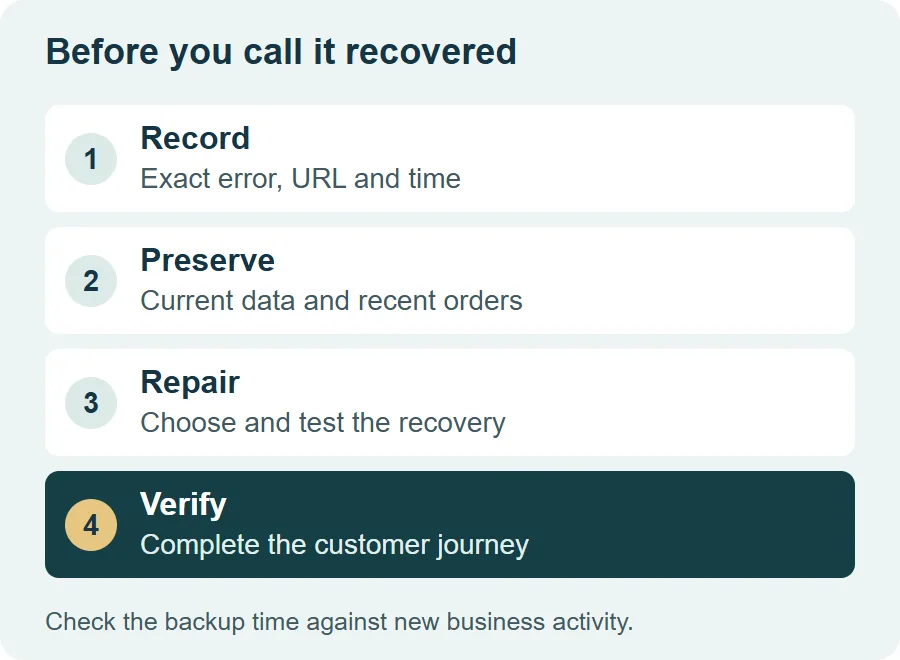
- Keep a current recovery copy. Preserve the present files and database before making another repair, even if the site is broken. Protect the copy because it may contain customer information.
- Identify new activity. Compare the proposed restore point with recent orders, enquiries, bookings and edits. Agree how to retain or reconcile them.
- Reproduce the issue away from customers where possible. Use a private staging copy with outbound email, live payments and external automations controlled so tests do not create real customer activity.
- Choose a specific repair. Record the changed component, expected effect, fallback and person responsible. A wider restore should have an explicit reason.
- Plan the live check. Decide what must pass before reopening checkout or removing a maintenance notice. Keep an alternative contact route visible if customers cannot use the normal one.
For a store, WooCommerce's update guidance covers backups, staging and post-update store checks. A staging test is useful evidence, but deployment still needs a fresh live check. Avoid copying an old staging database over a busy store without a plan for the transactions received since that copy was made.
5. Verify what customers actually need to do
Write a short acceptance checklist before saying the repair is finished. For a service business in Toronto, that might mean finding the service on a phone, opening the enquiry form, submitting one labelled owner test and confirming its destination. Our WordPress form-email guide explains why a success message alone does not prove inbox receipt.
For an online shop, agree on an appropriate test payment method or controlled test order with the owner. Verify the recorded order, payment outcome, delivery choices and notification. Avoid repeated live charges just to see whether a button works.
- Check the previously broken URL and the main navigation as a logged-out visitor.
- Check phone and desktop layouts, including menus, buttons and error messages.
- Verify forms, bookings or checkout through to the appropriate destination.
- Confirm admin access, the installed versions and any pending update notices.
- Review fresh errors after the test and record any remaining limitations.
If a CDN or website cache is involved, refresh the affected content and revisit the ordinary public URL. A special preview or cache-busting link does not prove every customer sees the repair.
6. Make the next update easier to verify
Keep a small record of the components updated, the backup point, the checks performed and the result. Ask who monitors failed updates and who can restore the site. Our website backup guide covers backup frequency and restore testing; ongoing website maintenance adds a repeatable process around those checks.
There is no universal order for every plugin, theme and WordPress update. Review compatibility and vendor instructions for your particular combination, as the official WordPress update guide recommends.
November 2026 context: WordPress published 7.2 Release Candidate 3 on 24 November. Its announcement says the release candidate is for testing, not production sites. A release candidate is not a reason to put an experimental version on your business website, and this guide does not claim that release caused an outage.
Need help with a site broken after an update?
BridgeWeb can assess the affected WordPress site and help plan the repair. Include the URL, exact symptom, last working time, recent updates and backup time in your request. Keep passwords and customer data out of the initial message.
Common questions
Why did my WordPress website break after an update?
The timing can point to a compatibility problem, an incomplete update or a changed dependency, but it does not identify the cause by itself. Record the changed plugin, theme, WordPress or PHP version and the exact error. Ask your host or developer to check the matching logs before making further changes.
Should I restore yesterday's backup straight away?
First compare its timestamp with your newest orders, enquiries, bookings and edits. A full restore can remove newer database records. Preserve the current state and ask how those records will be retained or reconciled before approving a restore. The right recovery scope depends on what changed.
Is rolling back a plugin the same as restoring my website?
No. A plugin rollback changes that component's version, while a full restore can replace the site's files and database. Older plugin files may also be incompatible with database changes from the update. Confirm vendor guidance and test the recovery before applying it to the live site.
Should I turn off automatic updates permanently?
Avoid leaving the site indefinitely on outdated software. Set an update process with a current backup, compatibility review, staging tests where available and checks after release. A temporary hold while investigating one faulty update needs a clear owner and a plan for a supported fix.
How do I know the repair is finished?
Check the affected page as a logged-out visitor on a phone and desktop, then complete the relevant customer journey. For a lead site, verify a controlled form test reaches its destination. For a store, verify the agreed test order, payment result and notification. Also confirm admin access and review fresh errors.
Sources and scope
- WordPress: Updating WordPress, compatibility and update checks.
- WordPress: Backups, files and database recovery.
- WooCommerce: Updating WooCommerce, store preparation and verification.
- WordPress 7.2 RC3 announcement, dated 24 November 2026.
Reviewed 25 November 2026. General owner guidance for WordPress business sites; recovery depends on your hosting, software and available backups. The order example is illustrative, not a client case or a promise of recovery time.

